

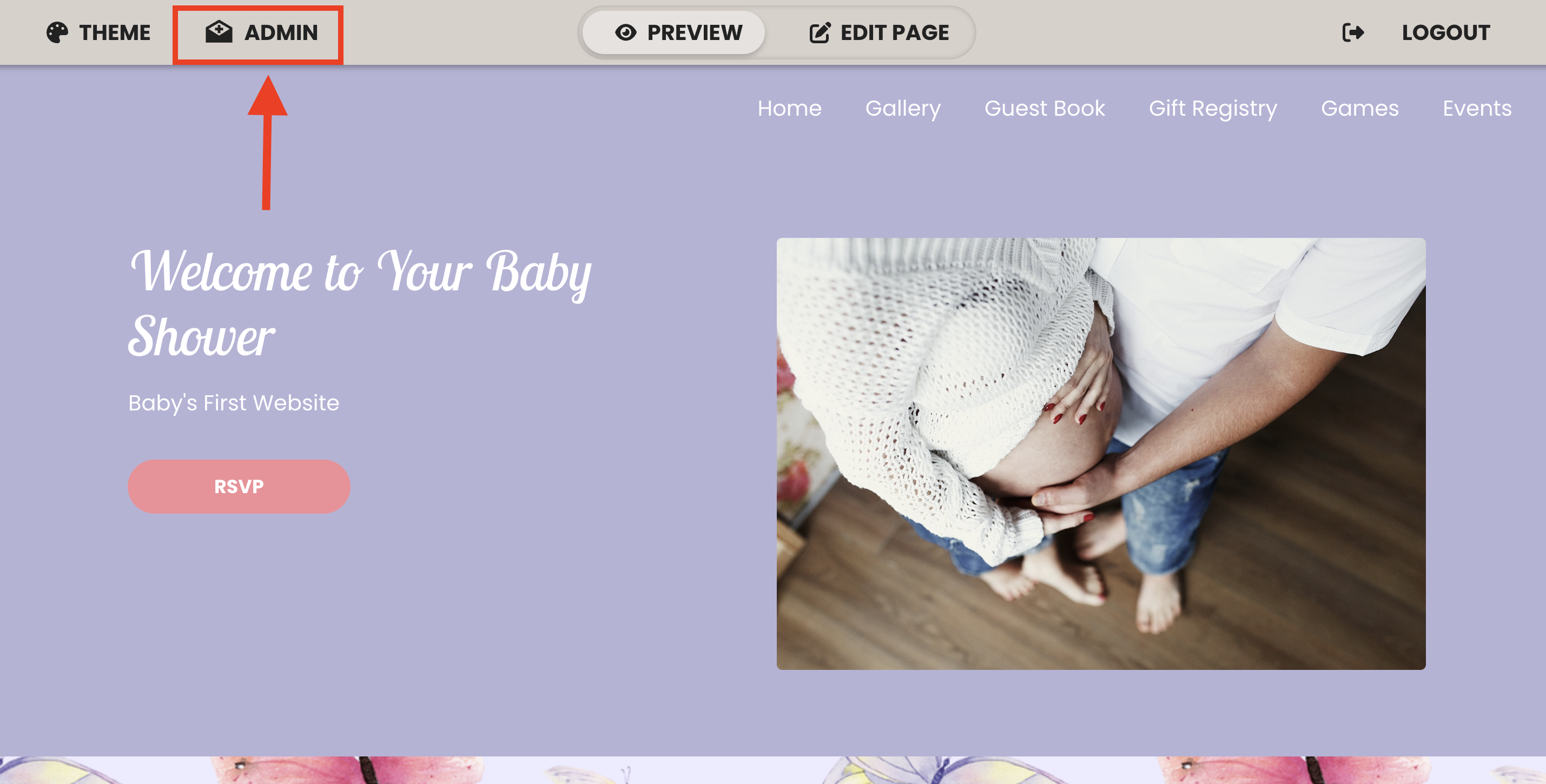
1. Go to your Admin page
Log in to your account and open the Admin page.
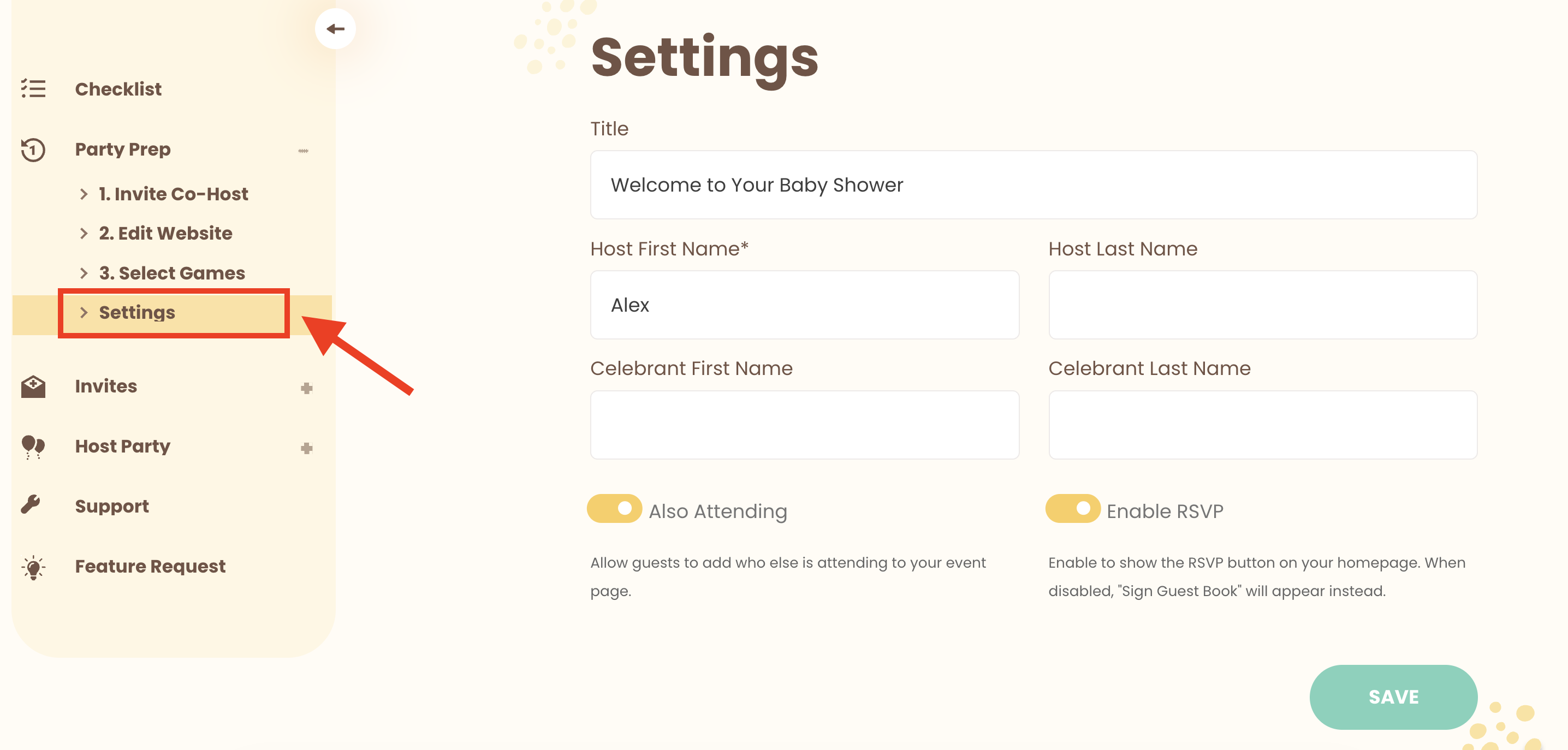
2. Navigate to Settings
From the left sidebar menu, click Party Prep + > Settings
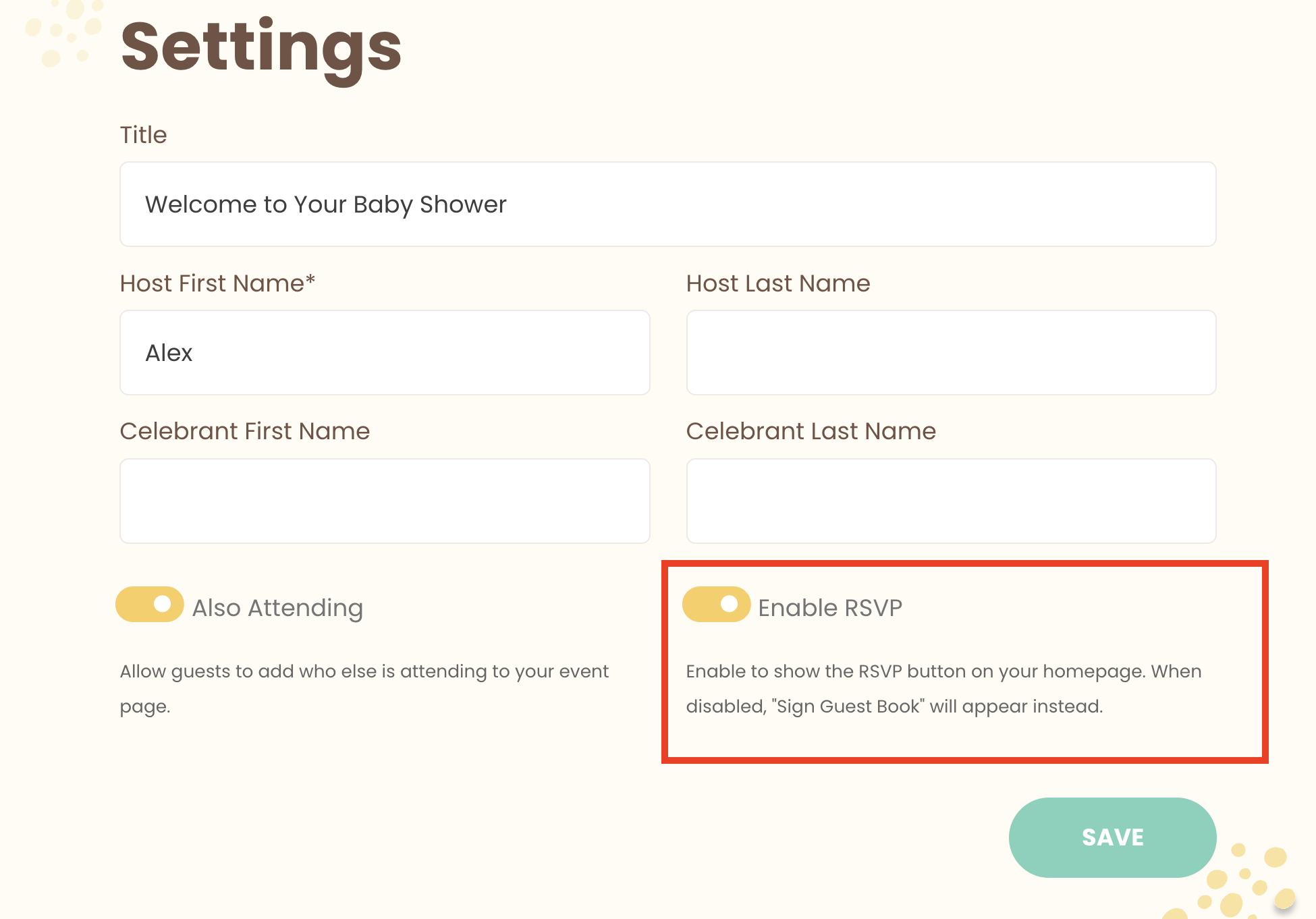
3. Use the RSVP Toggle
At the bottom right of the settings page, look for the Enable RSVP toggle button. It's right below the Celebrant Last Name field.
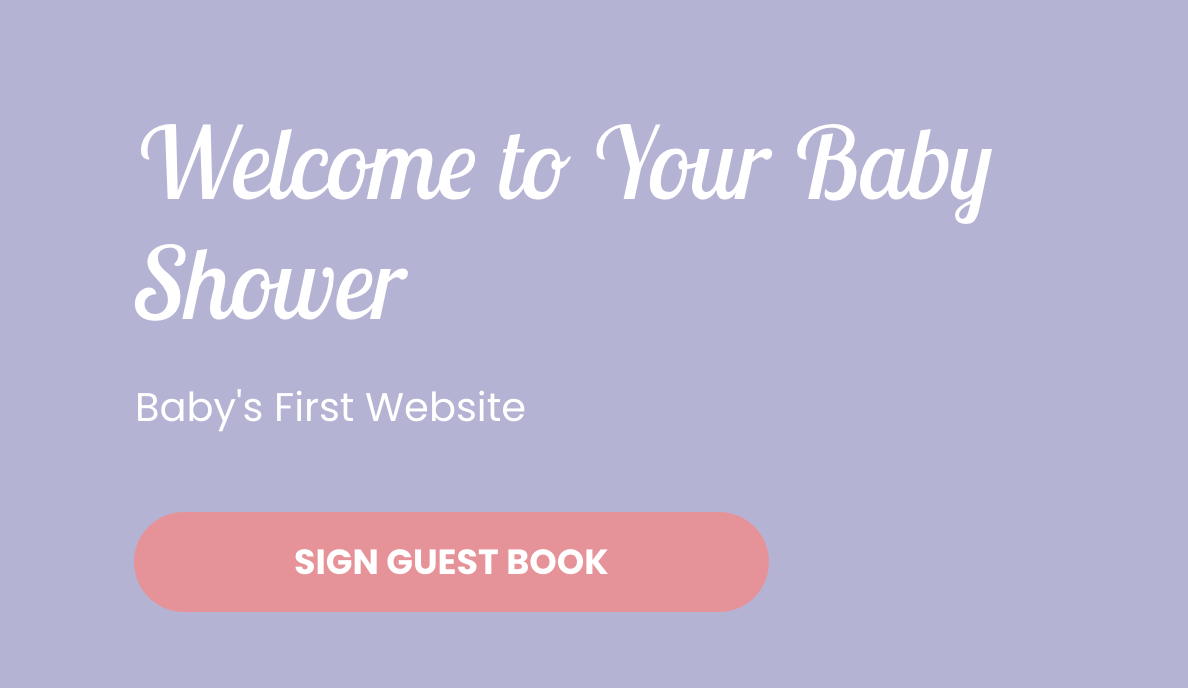
Switch the toggle ON to enable the RSVP button, or OFF to disable it. When disabled, the homepage will display “Sign Guest Book” in place of the RSVP button.
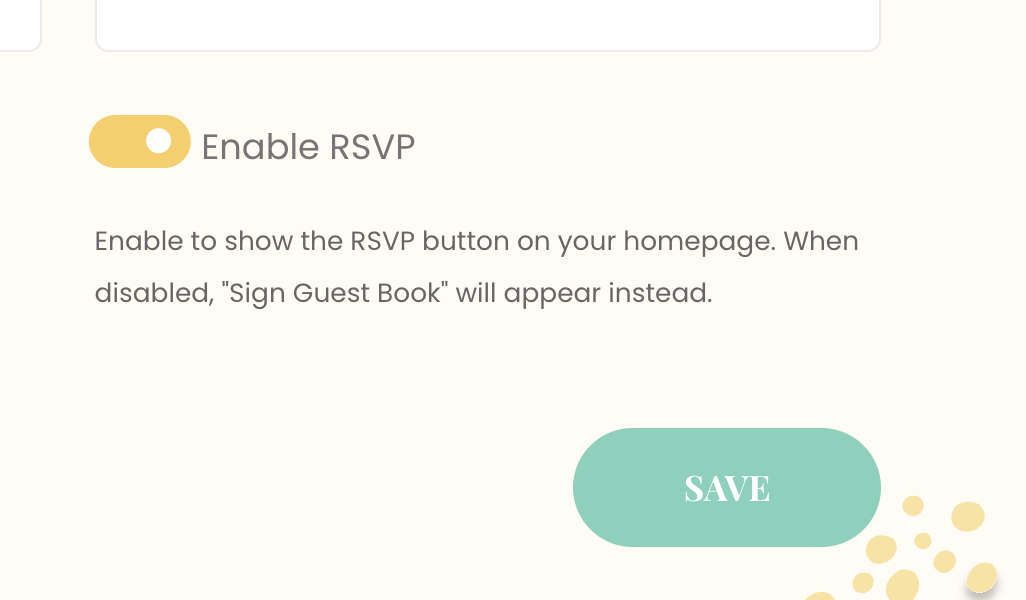
Click Save.
4. Check Your Homepage
Once toggled, visit your homepage to see the change:
Enabled: The button shows RSVP.

Disabled: The button shows Sign Guest Book.
Notes
Changes take effect immediately.
You can switch the toggle anytime to update your homepage button.
RSVP responses will not be affected if you switch RSVP off
Please feel free to reach out to our support team with any questions!